![logo.png]](https://kb.coraltreetech.com/hs-fs/hubfs/CoralTree/logos/logo.png?height=23&name=logo.png)

This article is intended users under the Basil Advanced plan. Basil Simple users can refer to this article.
There may be times when you need to reinstall Basil Drive (a.k.a. Basil Explorer) on the same computer or a new computer. You can follow these steps to do that.
Reinstalling Basil Drive on the same Computer:
Follow these steps if you need to reinstall Basil Drive:
- Close Basil Drive if it's running
- Open the System Tray on your computer's Taskbar by clicking the up arrow to the left of the system clock.
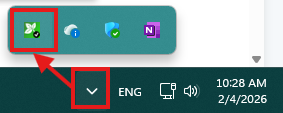
- Right-click the tile with a Basil leaf icon and click 'Exit Basil'.
- Open the System Tray on your computer's Taskbar by clicking the up arrow to the left of the system clock.
- Uninstall Basil Drive through Windows Settings or Control Panel
- Go to the Windows Start Menu or Search bar and type 'installed apps' or 'Apps & features'.
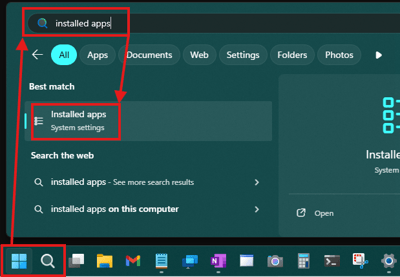
- Look for 'Basil Drive' in the list, click the three dots on the right side, and click 'Uninstall'.
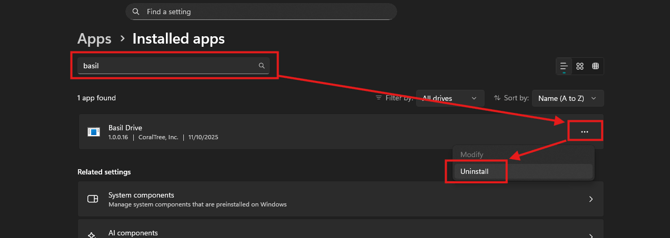
- Click 'OK' on the pop-up to finalize the uninstallation process.
- Go to the Windows Start Menu or Search bar and type 'installed apps' or 'Apps & features'.
- Install the Latest Version
- On your web browser, log into the Basil website as the Account Owner, click your icon on the top-right, click 'Basil Drive'. Then click 'Download Basil Drive Client' on the next page.
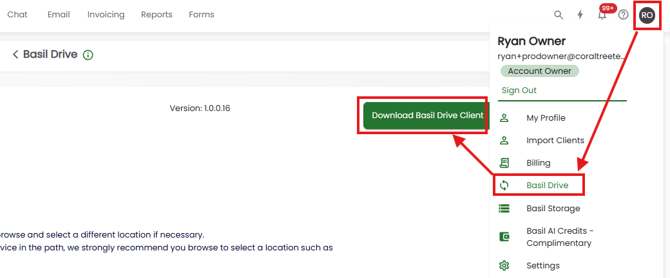
- It will download a setup.exe file to your computer's Downloads folder. Run that file and follow the prompt to install.
- Note that uninstalling and reinstalling Basil Drive on the same computer should not require to log the user back in and re-downsync all of the files.
- The software should automatically launch when completed. Otherwise, you can reach out to our Support for additional help.
- On your web browser, log into the Basil website as the Account Owner, click your icon on the top-right, click 'Basil Drive'. Then click 'Download Basil Drive Client' on the next page.
Installing Basil Drive on a New Computer:
If you have a new computer and would like to install Basil Drive on it, please first be aware that logging into Basil Drive on a new computer will automatically sign out of Basil Drive on the previous computer. No further action will be needed to deactivate Basil Drive on the old computer.
Once ready to phase out Basil Drive on the old computer, you can refer to this article to install and re-downsync all folders and files onto the new computer. Be sure to log in as the Account Owner when logging in.