![logo.png]](https://kb.coraltreetech.com/hs-fs/hubfs/CoralTree/logos/logo.png?height=23&name=logo.png)

This article is intended users under the Basil Advanced plan. Basil Simple users can refer to this article.
Basil’s QuickBooks Online (QBO) integration allows you to import clients and service items from QBO and send invoices from Basil to QBO for processing. QuickBooks Online integration must be enabled by Basil Support before it can be configured or used.
Note: This feature is currently available only to the Account Owner; Team Members do not have access.
Enabling QuickBooks Online (QBO) through Settings:
Once enabled by Support, log in as the Account Owner, go to Settings (https://basil.coraltreetech.com/settings), then go to Invoice Settings, set the toggle to 'Enable', and follow the subsequent prompts.

Importing Clients in bulk through QBO:
You can import any or all of your clients that you have on your QBO account. When you go to the People tab, click the QBO button at the top-right which you can use to merge and import your list of clients from QuickBooks Online.
-
If you get a ‘Failed to fetch data’ error when clicking the QBO button, please go to Settings > Invoice Settings > Disable your QuickBooks Online integration and then re-enable it.

During the import process, you can choose to complete or skip the following steps:
- Merge matching Clients - Shows any client whose Basil name matches the QBO name exactly so your existing Basil clients can be merged with those in QBO.
- Merge Clients manually - Shows any Basil client who doesn’t have a matching name in QBO, which you can use to merge into Basil. For example, if you have a client named ‘Metallurgy’ in Basil but ‘Metallurgy LLC’ in QBO, you can use the third step to merge that QBO client into your Basil's existing client.
- Import new Clients - Creates brand new clients in Basil for each selected client in QBO. It will be given a default workspace.

Once you’ve finished using this tool, clients who have been successfully merged or imported will have a green 'qb' icon next to their name.
Importing QBO Service Items for Invoicing:
You can import your Products & Services from QBO as Service Items in Basil. Go to the Billing tab, click 'Service Items', and click the 'QBO' button at the top-right to import. Once imported, you can set up the Basil Billing Mode for these service items to be Fixed Billing, Hourly Billing or Service Billing.


Creating an Invoice for QBO:
You can create Invoices in Basil and have them sent to QBO for further processing. You will need to have completed the above sections of this article first.
When creating an Invoice from Basil’s Invoicing tab, if your client is a QBO client (it has a green ‘qb’ icon), then you will have the option to ‘Send to QBO’.

It’s important to know that Invoices for QBO clients can only include service items imported from QBO, and can only be sent to QBO. They will need to be processed further to include any taxes on the QBO side before they can be sent to the clients for payment.
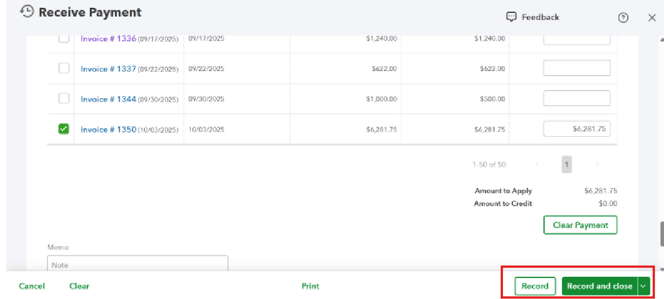
The payment status of invoices sent through QBO will be automatically set to ‘Paid’ on the Basil side only when payments are recorded using the ‘Record’ button on the QBO side.