![logo.png]](https://kb.coraltreetech.com/hs-fs/hubfs/CoralTree/logos/logo.png?height=23&name=logo.png)

This article is intended users under the Basil Advanced plan. Basil Simple users can refer to this article.
In addition to the web version of Basil, Team Members and Clients can access Basil on mobile via a web browser (such as Chrome or Safari) or the iOS app. The mobile version will allow the user to view, upload, and sign files (among other things) in Basil through their phone.
Note: The Basil mobile version and mobile app are currently under active development and may not yet support all features. For the most reliable and complete experience, please use the Basil web application.
Installing My Basil iOS app:
On your iPhone, start by going to the App Store or open this link.
Then search for “my basil” and select the app with a green leaf icon from 'Coraltree'. Tap GET or INSTALL.
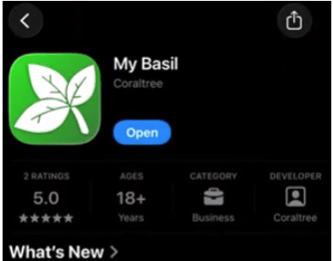
(There currently isn’t an Android version of Basil on the Play Store.)
Creating an Account on Mobile:
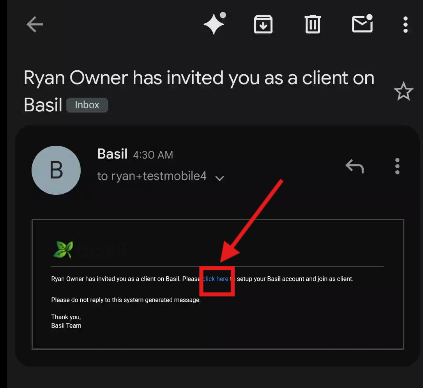
If you were invited to join Basil from an email (from noreply@coraltreetech.com), you can tap the ‘click here’ button in that email.
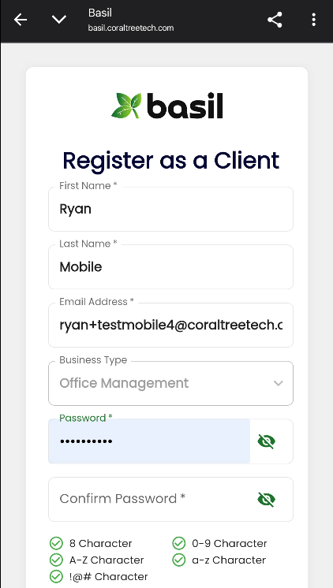
Make sure you use the same email address you were invited with when filling out the fields.
After submitting the first page, you will be prompted to input a verification code that was emailed to you. If you have issues navigating back to your inbox to receive the verification code, look for and tap a minimize button from the Basil verification screen (in Chrome, it may look like a down arrow on the top-left).
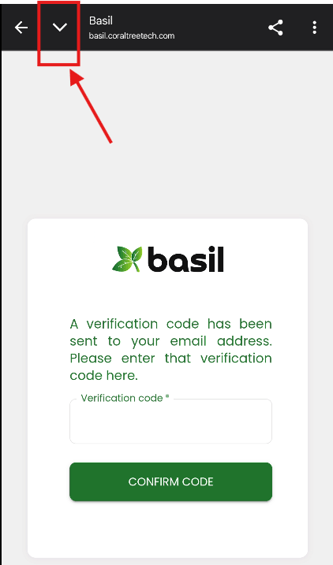
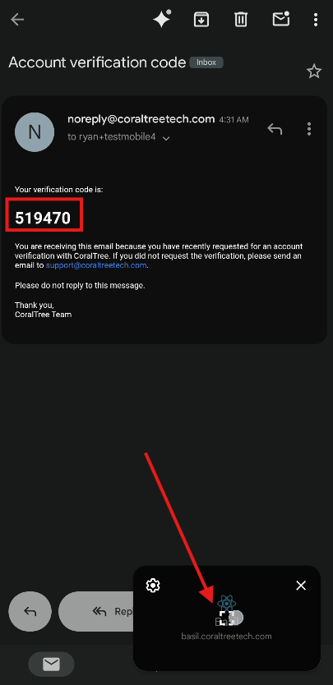
Once you have the code, you can maximize the page by tapping on the floating preview window (possibly on the bottom-right. Input the code and tap CONFIRM CODE.
Logging into Basil on Mobile:
Once your account is created, you can launch the My Basil iOS app or go to the Basil site (https://basil.coraltreetech.com/) on a mobile web browser, such as Chrome or Safari. Input your email address and password. You can reset the password if needed (https://basil.coraltreetech.com/forgot_password).
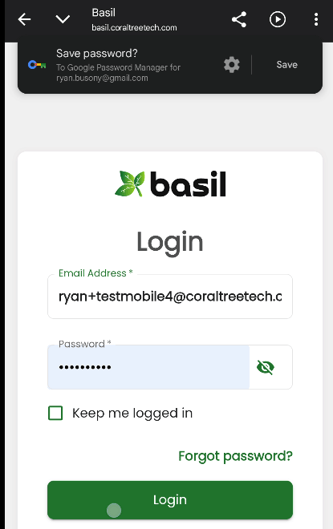
Once signed in, you can interact with Basil, such as viewing, uploading, or signing files.
Viewing, Downloading, and Uploading Files on Mobile:
Once logged into Basil on mobile, tap the three lines on the top-left and tap ‘Files’.
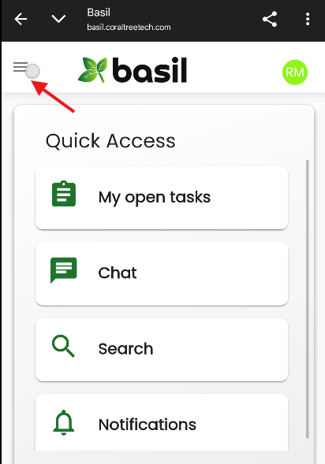
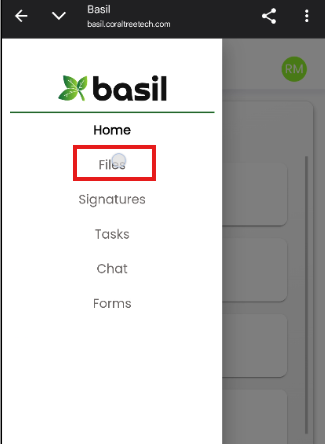
You will then be able to browse and view your folders and files.
You can download files to your phone by clicking the three-dots button to the right of each file you’d like to download.
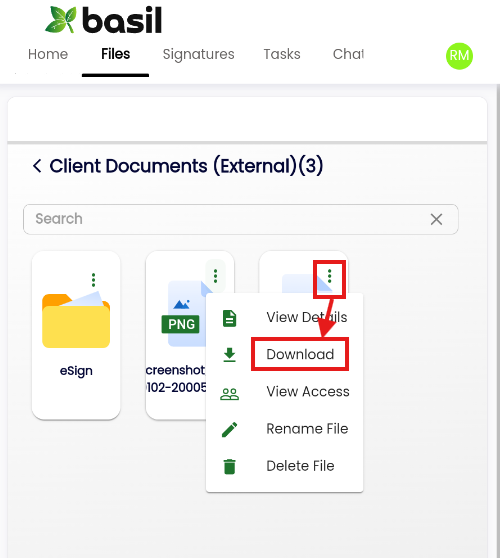
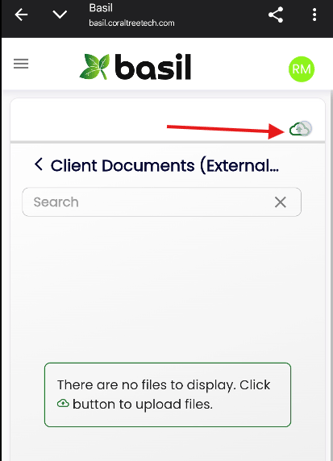
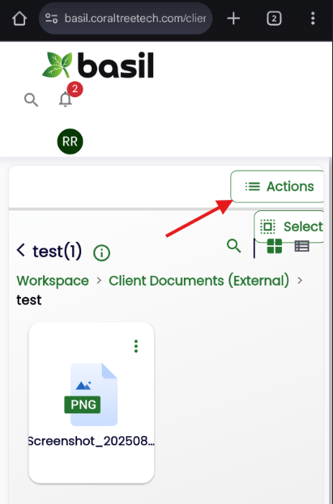
To upload files, such as PDFs and photos, tap either the cloud icon or Actions button on the top-right.
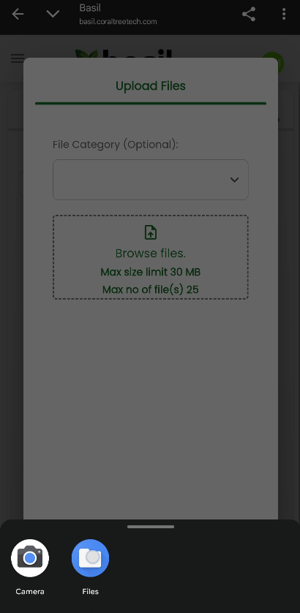
You can then tap ‘Browse files’ to select files on your device. Tap ‘Upload’ on the next screen.
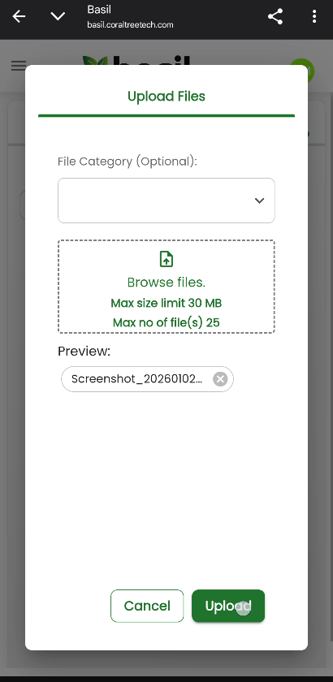
If you get no errors, the files will upload to Basil for other shared users to see. If you encounter an error or if the file did not upload, please try again on a laptop or computer for better compatibility.
Note: If you are a client, you can also upload and download files from Basil using a download or upload link emailed to your inbox. Basil Account Owners and Team Members are able to send those links.
eSigning Documents while Logged into Basil on Mobile:
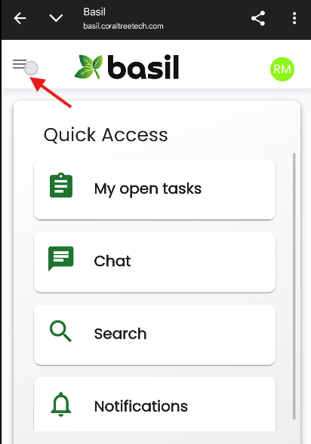
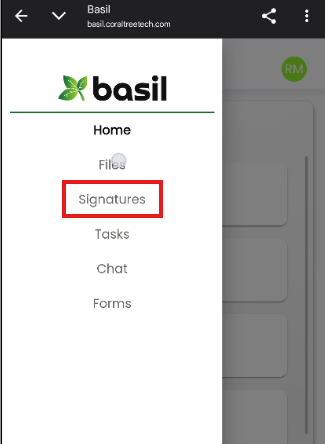
If signing while logged into Basil on mobile, tap the three lines on the top-left and tap ‘Signatures’.
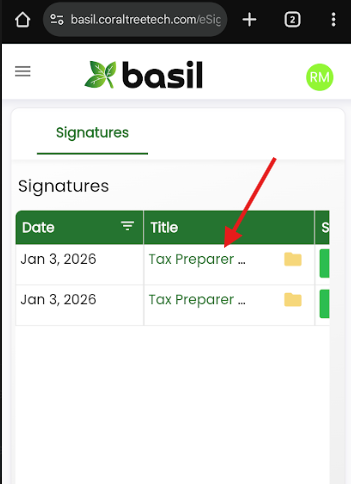
Tap the title of the document you want to sign.
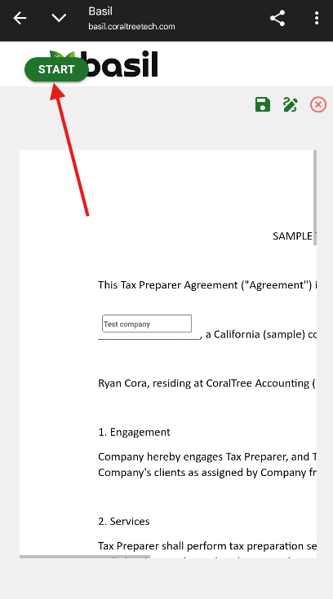
Accept Basil’s agreement and you will see your document. You can tap START on the top-left to be brought to the first field that needs your attention. You can tap the field to sign or fill it in. Tap NEXT on the top-left to go to the next field.
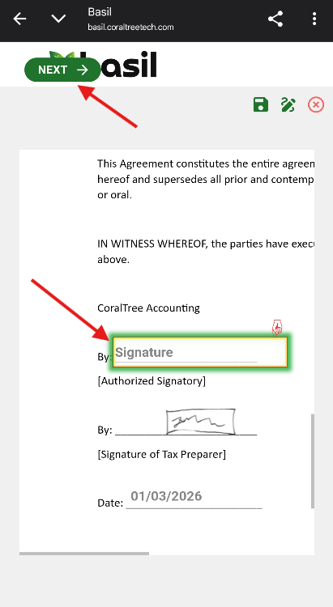
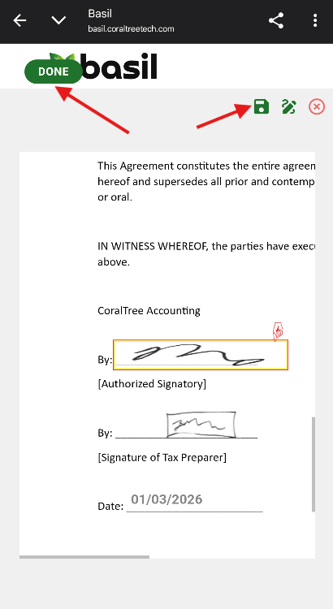
When all fields are completed, you can either tap the DONE button on the top-left or the floppy disk icon on the top-right.
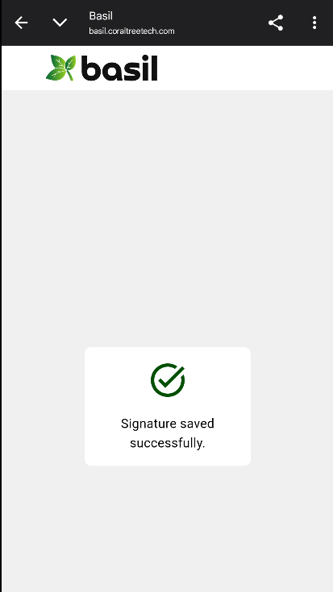
If you get no errors, your signature should then be saved successfully. If you encounter an error or if the signature did not save, please try again on a laptop or computer for better compatibility.
eSigning Documents through the Email Link on Mobile:
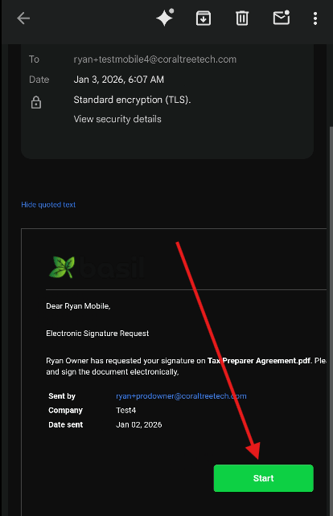
While viewing a signature request email from your inbox (such as Gmail), tap ‘Start’.
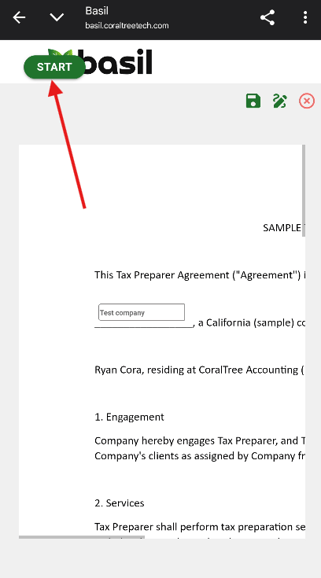
Accept Basil’s agreement and you will see your document. You can tap START on the top-left to be brought to the first field that needs your attention. You can tap the field to sign or fill it in. Tap NEXT on the top-left to go to the next field.
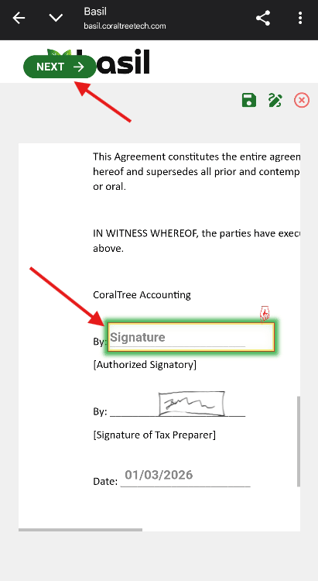
When all fields are completed, you can either tap the DONE button on the top-left or the floppy disk icon on the top-right.
After submitting the document, you may be prompted to input a verification code that was emailed to you. If you have issues navigating back to your inbox to receive the verification code, look for a minimize button from the Basil verification screen (in Chrome, it may look like a down arrow on the top-left).
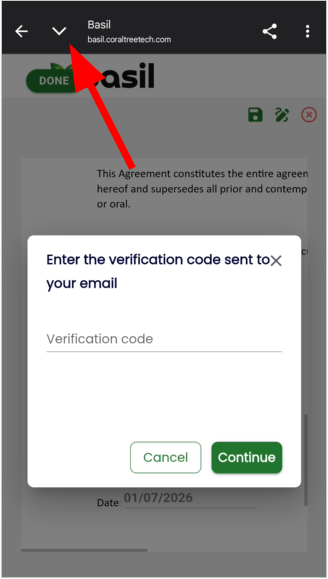
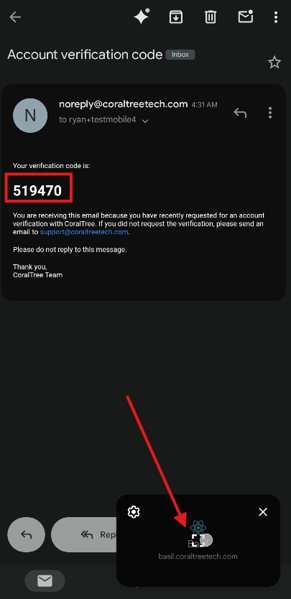
Once you have the code, you can maximize the page by tapping on the floating preview window (possibly on the bottom-right). Input the code and tap 'Continue'.
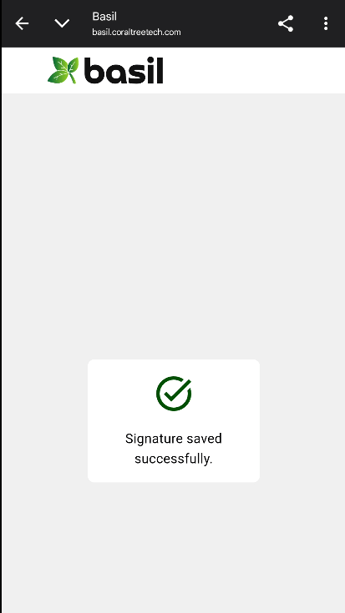
If you get no errors, your signature should then be saved successfully. If you encounter an error or if the signature did not save, please try again on a laptop or computer for better compatibility.