![logo.png]](https://kb.coraltreetech.com/hs-fs/hubfs/CoralTree/logos/logo.png?height=23&name=logo.png)

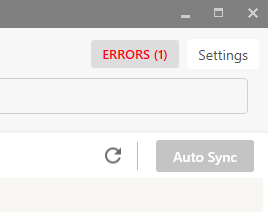
Please use this document to attempt to resolve a sync error. Sync errors will be shown when you click the ‘Errors’ button at the top right corner of the Qbox Client/Explorer near the ‘AUTO SYNC’ or ‘SYNC NOW’ button. Click the ‘Errors’ button and find the error code to look up the most common resolution. Contact the Qbox Support team if you would like further assistance.
(3000, 3001) Qbox is not able to connect to the Internet/Server:
There are several reasons for these errors. First, try restarting Qbox Client/Explorer by clicking the ‘File’ button, and selecting ‘Restart Qbox’.
An antivirus (AV) or web filter software installed on your computer could be the cause of the error as well. Disable the AV software and restart Qbox. If the error goes away, please add an exception for the Qbox Client application to your AV software.
Please contact the Qbox Support team if the errors persist.
(3002, 3009) Folder/File path is too long:
You may receive this error if you have a long folder/file path that is outside the Windows length requirement. Please contact the Qbox Support team for further direction.
(3003) Qbox storage error:
This error is caused when the storage medium location where the Qbox folder is located (often the C: drive) is low on space. Delete or archive unused programs, folders, and files locally to free up more space. Empty the Windows Recycle Bin if needed.
(3004) Qbox sync process interrupted:
This sync error could possibly be caused by a file or folder being renamed, creating a conflict between what is in the Qbox Client and what’s on the server. Restart the Qbox Client. If the problem persists, please contact Qbox support.
(3005) File does not exist:
The file being synced has been deleted. Please restart your Qbox Client.
(3006, 3010, 3066) Qbox sync error:
The last version of the file that was synced up to the cloud server was corrupted by the time it got to the Qbox servers, however the file is likely still healthy on the end of the last person who synced the file. Please ask the last person who synced the file to once again open the file through Qbox, lock the file, close QuickBooks, and ensure the file syncs and unlocks.
(3007) Delete file error:
If you are unable to delete a file within Qbox Explorer, restart the Qbox Client. This should allow you to delete the file.
(3008) Internal memory is not sufficient:
This issue is typically resolved by restarting the Qbox Client.
(3011) Could not create a specific folder:
A folder could not be created in a specific location within the Qbox folder. Open Windows File Explorer, navigate to the folder where the new folder needs to be located, manually create the folder, and then restart Qbox.
(3013) Folder error:
This sync error can occur for multiple reasons. First, check to see if there is a forward slash (“/”) in the Root Folder’s name. If so, rename the Root Folder to remove that forward slash.
A second possible cause of this error is folders existing under the Root Folder but are not Sync Folders. Open Windows Explorer and navigate to the Qbox folder. Enter the Root Folder and compare its folder contents with the Sync Folders that are viewable within Qbox Explorer. If there are any folders visible in Windows Explorer that are not displaying in Qbox Explorer, move those folders out via Windows Explorer, and Qbox should begin syncing.
(3014) Qbox recovery folder error:
A file in the Qbox Recovery Folder is causing a problem. This folder is created when a file is opened without locking it, and changes are made and saved, but another user opens the file, locks it, makes and saves changes, and syncs those changes to Qbox. The recovery folder is located in the same parent folder as the Qbox folder - so if the Qbox folder is located at “C:\Qbox\”, the recovery folder will be “C:\Qbox recovery\”.
To resolve this issue, go to the Qbox Recovery Folder using Windows Explorer and delete the file(s) there. (If you think you may need to save the data in these files for any reason, copy them to another folder unrelated to Qbox before deleting them.) After deleting the files, restart Qbox. If the issue persists, you may need to relocate Qbox to a new location.
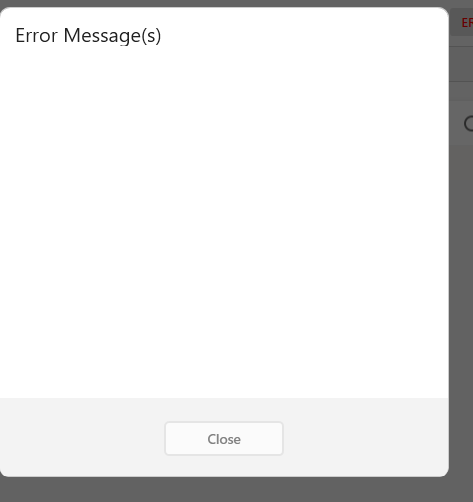
No Error Message(s)
If you click the red ‘ERRORS’ text to view the errors, but you see an empty list, this likely means the error has been self-resolved and Qbox is working as normal. The red text should go away upon restarting your Qbox software.