![logo.png]](https://kb.coraltreetech.com/hs-fs/hubfs/CoralTree/logos/logo.png?height=23&name=logo.png)

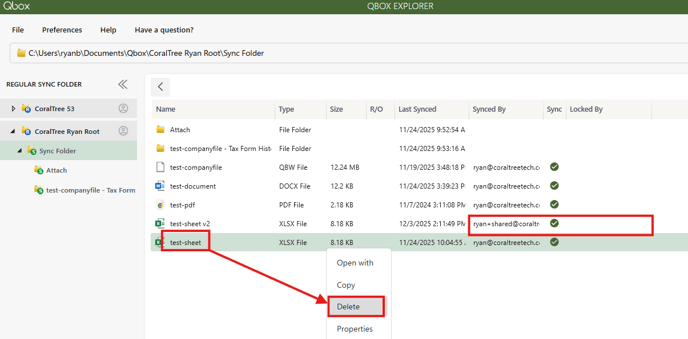
When opening an Excel spreadsheet file (.xlsx), Word document file (.docx), or PowerPoint presentation file (.pptx) from Qbox Explorer, Qbox may not prompt to lock. This prevents changes from being synced to other computers and typically affects one computer for one or few individual files. This can happen for several reasons, such as if the program (Excel, Word, PowerPoint) doesn't close properly or the computer crashes while the program is open, causing leftover temporary files to not automatically delete. This can also happen if the file is already locked but won’t sync and release the lock.
Solution 1: Delete the temporary lock files
Note: This approach is generally safe, however be aware of the worst-case scenarios if temporary lock files are deleted at the wrong time:
- Loss of unsaved edits (no recovery versions)
- Locked or ghosted files on network drives
- Conflicting copies created in OneDrive/SharePoint
- Excel/Word needing to repair the file upon next open
- Users being “kicked out” of shared documents unexpectedly
2. Open Windows File Explorer and go to the location of the file
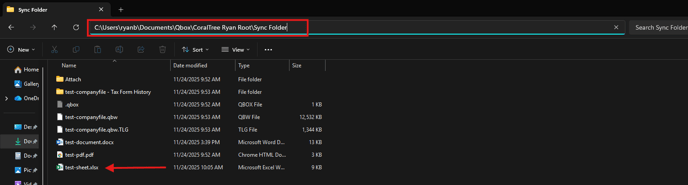
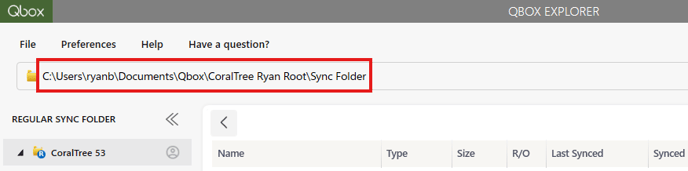
(If you don’t know the path, you can copy the path shown at the top of Qbox Explorer and paste into the address bar of File Explorer)
4. Turn ON "Show hidden files. folders, and drives"
5. Turn OFF "Hide protected operating system files"
6. You should see a file with the same name of the file in question plus a "~$" prefix (such as ~$test-sheet.xlsx). Delete that file.
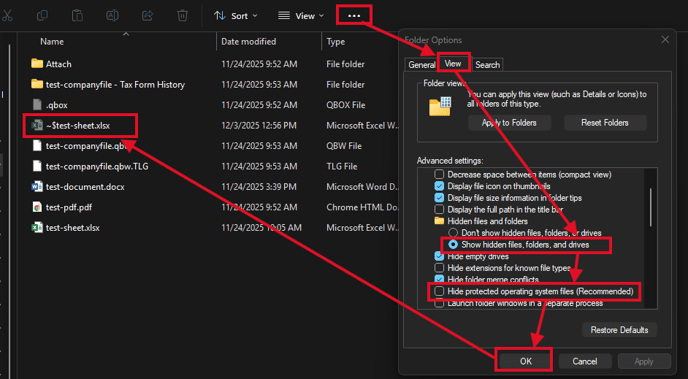
8. Optional: Repeat step 4 and reverse the settings changed in steps 5 and 6
Solution 2: Rename the file
If the above does not work or you don’t see the ~$ file, you can instead rename the file as a workaround, which will change the name for all other users.
1. In Qbox Explorer, right-click the file > Properties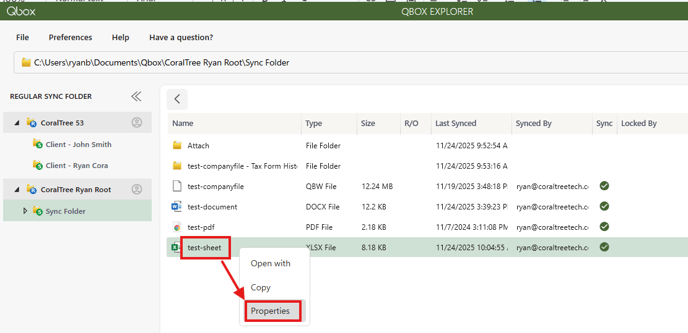
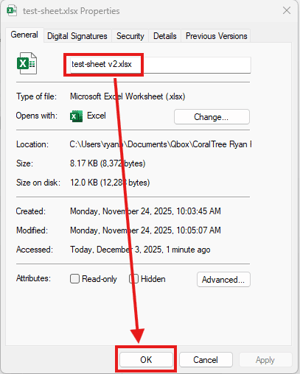
3. After a few seconds, you should see following two things happen (click the refresh symbol at the top-right of Qbox if you don’t see this happen):
a. The file with the new name syncs up
b. The file with the original name syncs back down
4. Open the file with the new name from Qbox and ensure it locks and syncs when closed
5. Right-click the file with the original name and Delete if you can. Otherwise, reach out to those who have permissions to delete files in that folder to do it for you